
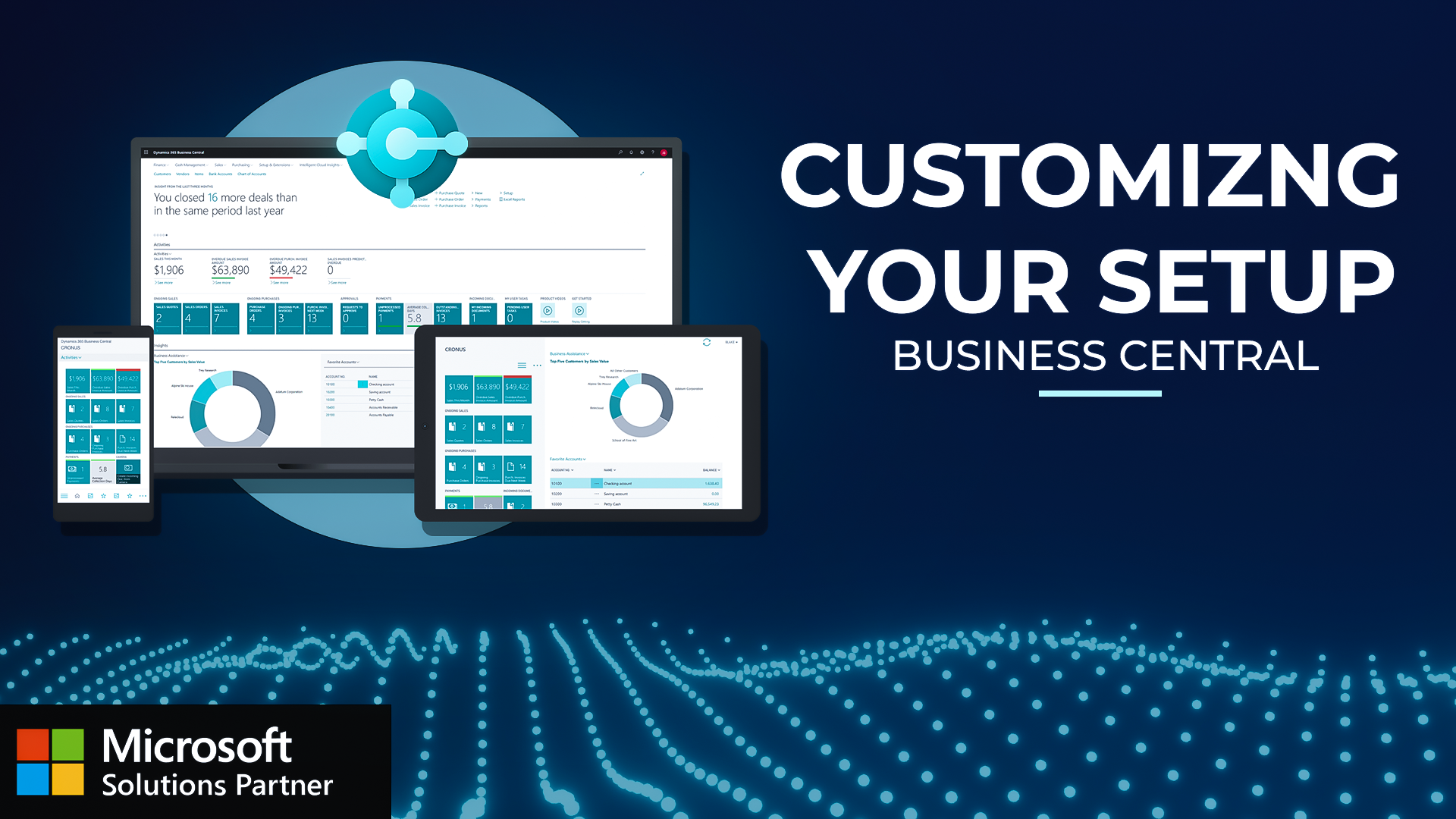
One of the reasons Business Central is so flexible is because of the personalization feature that it offers for its users. And just like the name implies, personalization only applies to you. It doesn't affect any other users in the system. And personalization is your way to edit fields and show and hide fields, move things around to the system to make your screen more efficient so that way you're operating at your very best. Wanna take a look? Let's get started. So here on the role center, if I wanna go into the personalization mode, I can go to the top right, select the cog icon, and then from the dropdown, I can hit personalize. What you're gonna see now is that my screen has turned into the personalization mode. And in this, as I move around my mouse, now I'm gonna have these red boxes that are appearing showing that I can personalize these items. So within the red boxes, you can see on the top right that I have the arrow that I can select from, and then it's going to show me the ability to perform certain personalization options with it. So for this, I have the email status queues, and I'm going to try to hide these. Let's say maybe I don't have a need for email statuses within my specific role. And let's do the same thing for approvals. Let's say maybe I'm not an approver, I don't need any access for pending approvals. Now you're gonna see the gray lines that have appeared over showing me that this is hidden because of personalization. If I go to the top right, I'm now able to hit done, and then it's gonna refresh my screen and eliminate those things from my view. But don't worry, they're not gone. If you wanna get them back, you can just go right back up to the cog icon, hit personalize, and then you're gonna see them appear back again. You could just hit those red arrows and hit show. And then once I hit done, it's now gonna appear back for me right on my home screen. So you're able to show and hide things to make things really efficient. This is really helpful on role centers to customize it, to make it specific for you, but then also really helpful within views and cards. So I'm gonna drill in here onto items and show you how you can take advantage of different personalized options within the lists. So here I can hit the cog icon on the top right, select personalize, it's gonna pop open this view again for me in personalization mode. I can hit plus fields, and then now it's gonna show me all the different options, which are not currently showing on the page for me that I can now add in. So let's say description two, I can drag and drop in here. Don't think there's too much data in there really. I can try to do the, let's switch it up and let's try to add in here maybe our replenishment system. So how we're going to replenish these items back. So now I can see it's popping up with purchase, production orders, or assembly, and that can close out of this as well. So here on the items page, you can see I have all of my different columns that are set up, which are all the fields associated with the items. And if I wanna go into personalized mode, I can hit personalize underneath the cog icon on the top right. If I wanna add in some fields, can hit plus field. Now it's gonna show me all the different fields that are available for me here that I can drag and drop into the grid and I can take a look at. So if I see last modified date, I can drag and drop this in here. Now I can see the last modified date that was specified for this item. So who edited this last? If I wanna move around the columns, I can just simply grab that arrow and then move it between. So you can see I'm flipping these columns back and forth and then I can hit done. And then of course, this is only applying to your screen, so not affecting anybody else's. So you can set up the exact fields that you need to see and maybe just best for your workflow. And then lastly here, one of the best things about personalization is editing the item or the card pages within Business Central. So now here on a card page, the item card specifically, I can hit personalize, and then it's gonna do the same thing that it did for me on the role center page where I can show and hide things. So if I maybe never use the blocked action, I can hit the arrow there and hit hide, and then now it's gonna disappear for me. So this way it's only leaving you with the data that you actually use and creating this very efficient workflow for you. And you can even move around the fields to make it more in the sequential order in which you would look at the information. And that's really it for personalization. This gives you the option to go through and set up exactly the screens that you need to see in the system to give you the most efficient way to work through everything. So hopefully you gotten some value out of this video and looking forward to seeing you in the next one.
Discover how to customize Business Central to match your exact workflow needs without affecting other users! This step-by-step demonstration shows you how to:
- Role Center Personalization: Show or hide elements to declutter your home screen
- List View Customization: Add, remove, and rearrange columns to display only relevant information
- Card Page Adjustments: Modify item cards to show only the fields you actually use
- Boost Efficiency: Create a streamlined workspace perfectly tailored to your specific needs
