
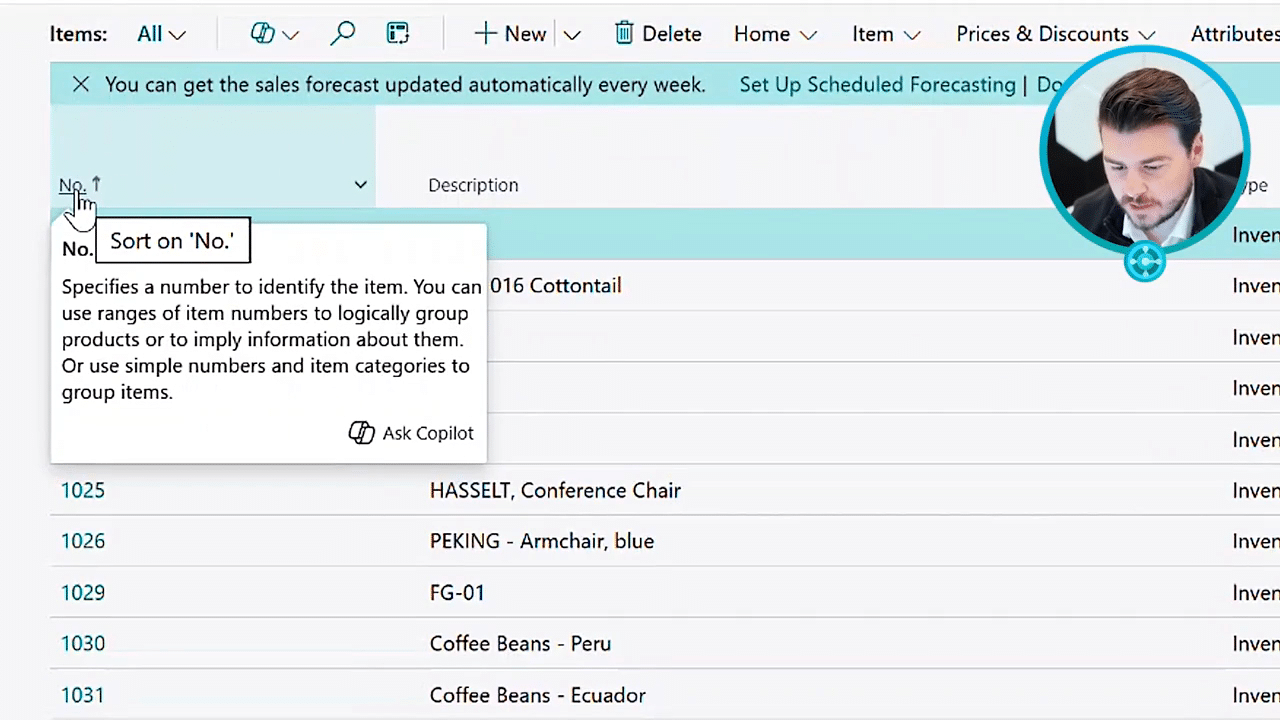
Working with lists and views within Business Central is one of the best ways to get access to your data. In order to be a pro, you've gotta keep your data organized. So let's take a look at how we could do that within the system. From here, I'm on the role center page within the system, the home page as sometimes referred to as within Business Central. And I can navigate to a list page here by selecting one of my favorites. So I'm gonna go to items, but the easiest to look at in terms of our, views and different filters that we have available. So this is gonna pop open all of the lists of items that I have that are available automatically filtered on the primary key, which is my item number here. If I want to filter back and forth, or or sort back and forth rather on a individual column, I can click on that column and it's gonna sort it ascending to descending for me here. So an easy way for me to be able to flip back and forth within any of these, these given columns here. So you can see I'm flipping now on the description to see a, alphabetical order based on my description, and I can flip it to go descending alphabetical order here as well. So just an easy way for you to quickly get access to, certain information. If I wanna be able to filter on, these these items, I can right click here on the top and I can hit filter, which will then pop open all of my filtering, that's available for me on the left hand side. I can filter for certain, characteristics within the description like blue. If I do a wild card and then type in the, the description I'm looking for, hit enter. Now it's gonna look for anything that has blue within that given description. And then if I want to add in an additional filter here, I can hit the plus filter icon and then search for additional fields that I'd like to have. So maybe we can do quantity on hand as our filter, And then I can say, I want anything that is greater than zero here. So just showing you how you can do greater than, less than, or equal to. I can click, and then now you're gonna see it's filtered for anything that has blue in the description and has more than a quantity of zero on hand. So this is actually inventory that we have available for us. So now if I'd like to save this view, I can click on save as and I can create a copy. So greater than zero, blue. And then now when I select off, it's gonna have created a saved view for me that I can go to at any given moment. So then I can switch easily back to the view of all, and then I can go through and look at all items. But whenever I wanna go back to that saved view, I can just click right on here. And then now I'm right back to my to my view here. Just showing you some easy ways to filter your data, and create a save views of the system. You can imagine all the different things that this can apply to, like looking at sales orders that have been shipped but not invoiced, or looking at sales lines with specific items on them, or that have higher than certain amounts. The options are really endless in terms of the capabilities here when it comes to the filtering and the view creation. So that's it for creating views and filters in the system. Hopefully, you've gotten some value out of understanding how to use these features, to be able to maximize your organization within the system. Can't wait to see you in the next video.
The video emphasizes the importance of working with lists and views for effective data access and organization. Users can navigate through list pages, sort items, and apply various filters to refine their searches. Features like wildcards and custom views enhance the user experience by allowing for specific searches and easy access to saved criteria.
The video encourages viewers to continue learning about these tools to maximize their proficiency in managing data.
