
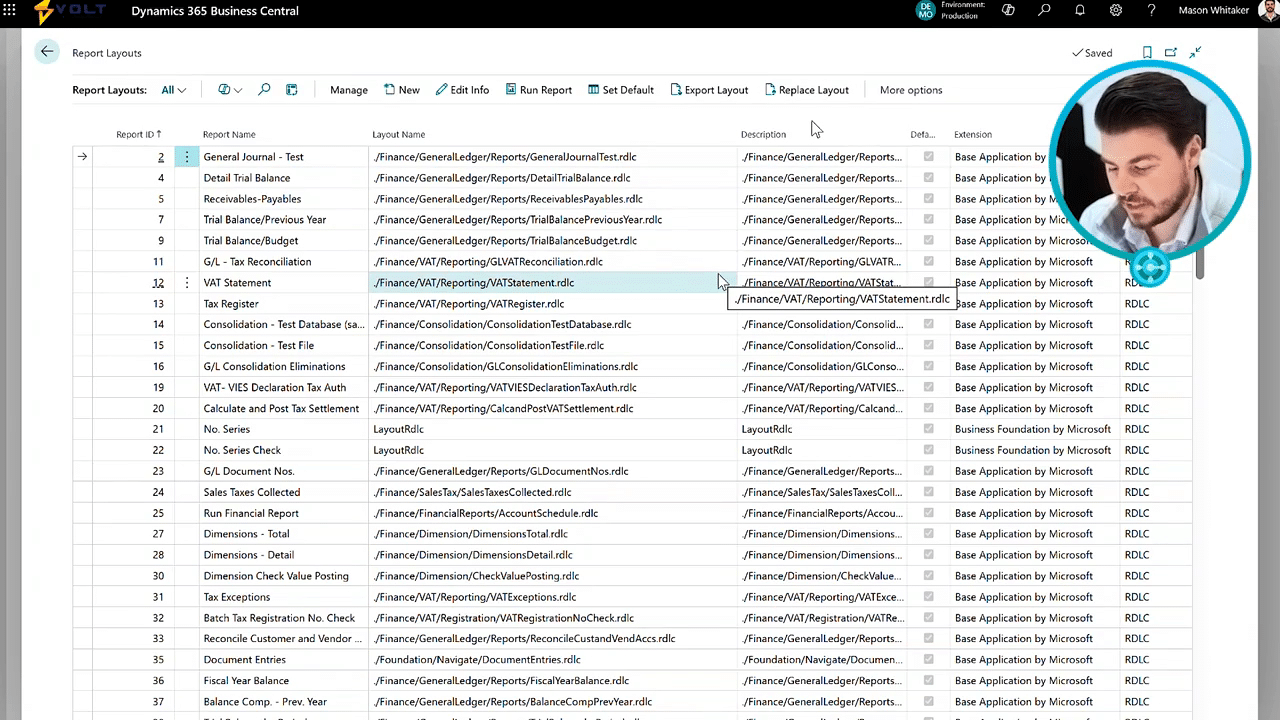
One of the main benefits of running Dynamics three sixty five Business Central as your ERP is gonna be getting this nice detail, report and analysis out of the system. But there's so many different ways for you to do this. There's Power BI reports. There's embedded reports. There's transactional reports, document reports, financial reports, and so much more. Over six hundred reports, getting close to seven hundred reports available out of the box of the system. I'm gonna take you through an overview of some of the different ways you can get access to the data and see your insights from running transactions in Business Central. So let's take a look. Starting here on the role center page within Business Central, we can scroll down within our given role to see some of the, reporting that's available for us. So these three graphs here from the sales pipeline, opportunities, and top five opportunities are some of the out of the box visual reports that exist within the system, and this is underneath the sales and relationship manager role. So we can change some of these reports by saying, you know, clicking on the drop down and then selecting next sales cycle, and it's gonna change the different sales cycle for me here, thus changing the data. If I want to, I can click on that and actually interact with the data inside of the report. So now I can see what are those opportunities that are actually showing there. What's the value, what's the stage they're at, etcetera, and even drill down into that exact opportunity card. And then here under our opportunities, you could do the same thing, but now splitting out by the date. So I can say, I wanna look at this in a period of a year. I can look at this in a period of a quarter and really whatever date that you'd like to see. And then down here below, you have the opportunities. So showing top five opportunities. These are all configurable based on the role that you have. This is just the ones that come by default with the sales and relationship manager. These are the out of the box visual reports that Business Central provides, but you also have Power BI visual reports that can be embedded inside of Business Central. So down here, you'll see this power Power BI, action where I can select the given report that shows on my homepage. So if I want to expand this out to look at this from a full screen perspective, I can hit expand. And now it's gonna show me the report in a much bigger, part of the screen. And then if it's a dashboard and not just a single report, you can navigate between the different reports that are available in that dashboard. So giving you the full functionality of Power BI directly inside of Business Central. So if I wanna change any filtering or anything that's available, I could do that, directly inside of Business Central. So just like using Power BI as in Power BI service, but now it's fully embedded within Business Central. If you wanna flip between different Power BI reports that are, uploaded to your workspace, you could just hit that drop down and hit select report here. This is now gonna pop up all of the ones that are available within your workspace. Selecting a different report will then require it to reload and then it will now be available for you to use. While this Power BI option here is added on the role center, this can also be added throughout the system so you can get Power BI reports wherever you really need it. Those are the main visual reports in the system, but then there's also lots of detail regarding transactional reports and also our, financial reports and then just our document reports. So if I come up here and look at a document report, can go to my sales order, and we're we're just gonna take an order confirmation here as one of our reports. So from the sales order screen, I have a, an option here. This is gonna be available throughout lots of, different pages within the system. But let's take just the confirmation on the sales order as an example document report. When I hit print confirmation, it's gonna bring up my report layout, screen here where I can select lots of different options to see what I'm gonna actually be printing out or what I'm gonna be displaying in PDF or or in preview. First, you could select a printer if you'd like. So if you want a hard copy of this report, you can print it out. This will all be handled through your browser print settings. Or if you have a print agent installed and a print server, you can handle it that way as well. And then also the layout. So there's different types of layouts that can be used for this order confirmation report, and you can select which one you'd like to use. So these would all be different document formats. Say if you have different customers that require different look and feel for their order confirmation, you can set that up here and you can also set it up to auto default based on a lot of different criteria. With every given report, you're gonna have different options that you like to perform when you're printing it out. For now, we're gonna skip that. As well as you can filter down to the specific, transactions or the specific views that you'd like to actually print out within this document. Under our advanced settings, you can control things like how much you want to print out the maxes. This way you're able to get specifics on on all your reports and not, you know, go too long on running a report and then it it crashed out at the at the very end or something. You can set maximums, so that way you can control a lot more of the document generation. Down on the bottom, I can send this report to a variety of different options, PDF, XML, a Word document, or an Excel document. All of these have different formats that can be set up. So that way you're able to control the exact look and feel and and get really what you need from a document report. When I go to, print, this is actually gonna kick off the printer. So it will say, you know, based on my my browser, I, have some tax enabled here. There's other settings that are that are required there. Let's take a a pick instruction and try to preview this. Perfect. Doing the preview, it's gonna pop open a report for me so I could see actually what it's gonna look like when I do print this out. I could print this out from here or I can download this, to a file and control it this way. And, of course, this is the out of the box version, which just normally looks like defaulted information. This is all controlled by the document settings within the report layouts. In order to navigate to those report layouts, you just go up to the top right, hit the search icon, search for reports, and then you can see the report layouts page. Within this, you're gonna see all of the different reports that the report layouts that are here. You can export them and take a look at what they look like. You can run them. You can set them as default if you have lots of different report options, or you can create your own. This is just an overview video. We can go in-depth on exactly how to manage that across Word documents, Excel documents, XML documents, and so much more. So that's a brief overview of some of the reporting options that you have within Business Central. From visual reports, Power BI reports, document reports, transactional reports, there is so much to unlock in the system in regards to reporting because that's one of the best benefits that you're gonna get from running all your transactions within a holistic system like Business Central. Hopefully, you learned something in this video, and I look forward to seeing you in the next one.
The video highlights the robust reporting capabilities of Dynamics 365 Business Central, showcasing over six hundred available reports. Users can access various types of reports, including transactional, document, and financial reports, with the ability to customize them based on user roles. Power BI integration allows for enhanced functionality, enabling users to interact with reports directly from the role center.
Additionally, the video emphasizes the ease of generating and managing report layouts, as well as options for exporting and creating custom reports. Overall, reporting is presented as a significant advantage for transaction management within Business Central.
