
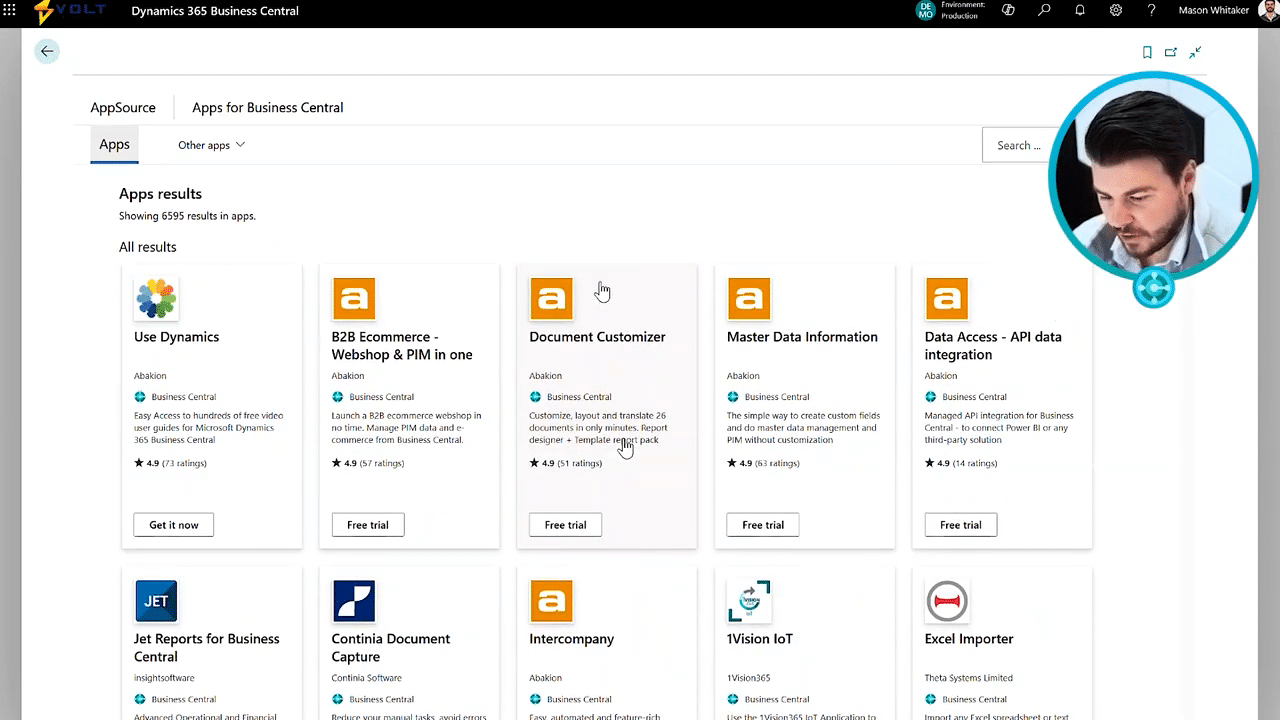
One of the great things about Dynamics three sixty five Business Central is that you can have a lot of different apps which bolt onto it and look like they are Business Central underneath, where you're just using Business Central like regular, and it looks and feels like Business Central, but it's actually an extended capability coming from a third party. This is all managed inside what's called the AppSource marketplace. Inside of AppSource, you can select different apps and have them automatically install into your Business Central environment and then manage them using the extension management workspace. So let's take a look at how that's managed in the system. Starting here from the role center page in Business Central, I can go up to the top right and search for marketplace. Selecting marketplace is gonna pop open the AppSource library for me. Let me search for apps that I'd like to bolt on to Business Central, even test out free trials or just inquire for more information if you're if you need to go to an outside company to acquire this. There's lots of different apps that are in in here. They have a full rating system included as well. Business Central has the most amount of apps built for it as for third parties of any Microsoft product that's out there. So I could search for different apps in here and check out specific platform apps. But for now, I'm just gonna show you how we can install this used Dynamics app that's written by a back end. This shows you video guides on Microsoft Dynamics three sixty five, but embedded inside of the product. I can select the get it now option. And what this will do is install the extension into my environment in the given language that I choose. It may take some time to be able to install. I know that this used Dynamics product is is relatively nimble, so it should only take just a few seconds for it to install into the environment. And then we're gonna see it actually embedded on the role center that's available there, for you to be able to use and inquire about, you know, specific videos on the page that you're looking at. Alright. So my app has now been installed, and it's refreshing my page and lets me know that my app is installed and ready to use. Took about a minute to get through, but now the code is available within the environment, and I'm gonna be able to see things that are applicable now using that use dynamics solution. Should be actually on the business manager role center here. So I'm gonna flip over into this role so I could take a look at now what's been added into the environment. So it doesn't look like a third party. It actually looks just like Business Central. So here up top, I can see this use Dynamics menu item that's been added. I can select something like basic training. It's not gonna show me all of the different videos that are available, for me to see, Business Central training there. So this way, I don't have to navigate outside to go and look at additional videos here, but rather I could view that inside of Business Central. If I want to maintain that extension, I can search for extension management. It's now going to pop up all of the different modules that are available here, And then it will show me this one that's by installed by the publisher, Abakyan, and that is the use dynamic solution. And let's search through here as well and see there's also another use dynamics, package in here as well. So you'll see on this list page all of the different extensions that have been installed in addition to the base application that's available. So Microsoft being the main publisher here as well as some other third parties that you'll see. And if you'd like to manage the solution, say, if we would like to install another application from outside that we've developed custom, you could go to upload extension and install the app file directly here. If you'd like to deprovision, a, a given, app, you can come here under manage and then hit the uninstall. The uninstall is gonna ask you if you'd like to delete all of the data that's associated with this extension. I'm just gonna hit yes. It's saying warning because everything is on this cannot be undone. That data will actually be gone and will not persist in the environment. And I'm just gonna select uninstall. It lets me know that there's a dependency on the other app that we saw down below, use dynamics. And it asks if I'd like to uninstall all of the dependencies with this app as well. I'm gonna say yes. I wanna uninstall both at the same time, and then it lets me know again that the data is gonna be deleted. Microsoft likes to ensure that you're aware of what you're doing here. I'm gonna hit yes, and then now it's gonna go through and perform the uninstall for me. Great. The application was successfully uninstalled, and now you have to sign in and sign out in order to see that take effect. And that's how you can quickly and easily access the AppSource marketplace from inside Business Central, install applications, and uninstall applications so you can take advantage of all of the different third parties that have built applications to increase Business Central's features and capabilities. Hopefully, you got some value out of this video, and I'm looking forward to seeing you in the next one.
The video showcases how Dynamics 365 Business Central facilitates the integration of various third-party applications, enhancing its functionality. Users can easily select and install these apps from AppSource, with management handled through the extension management workspace. A demonstration highlights the installation of the ‘used Dynamics’ app, which offers embedded video guides within Business Central.
The process of managing installed extensions, including uploading custom apps and uninstalling existing ones, is also covered. Viewers are encouraged to explore the diverse features available in Business Central.
